Automated Localization: GitLab CI/CD ❤ Localazy
Setup fully automated localization for your project once and forget about all the hassle forever. It’s fun with GitLab’s CI/CD!

Why integrate Localazy into the build process?
Localization can be challenging on its own and having to regularly remind developers (or yourself) to include the latest localization version before the release is not going to end up well at one point. With GitLab's powerful CI/CD, you need only to configure it properly once. Afterward, you can peacefully take this off your mind.
Integrate your app with Localazy
Let's suppose that your mobile, desktop, or web app is ready for localization, and strings in the source language are stored in JSON, YAML, iOS' strings, Flutter's ARB, or some other common format.
Sign up to Localazy, create a new app, install the CLI tool, and then create and test your localazy.json configuration. You should be able to upload the source language files and download the localized ones.
The basic configuration could look like this.
{
  "readKey": "your-read-key",
  "writeKey": "your-write-key",

  "upload": {
    "type": "json",
    "files": "locales/en.json"
  },

  "download": {
    "files": "locales/${lang}.json"
  }
}
Given that you've filled in your readKey and writeKey, you are already able to manually upload and download strings between your app and Localazy. Let's move on to automating this process.
Setup Secrets
Oftentimes it is desirable to hide secrets away from the repository and Localazy keys are no different. We'll use GitLab's variables for this. In your GitLab project, go to Settings -> CI / CD - > Variables and create two variables called LOCALAZY_WRITE_KEY and LOCALAZY_READ_KEY. The result should look like this.

Automated upload
The GitLab CI/CD is a powerful automation tool with tons of options. If you only need to automate the upload part without any special configuration (such as triggering it only on certain branches or for pull requests), you don't need to know much about it. However, if you're aiming to create complex automation rules, you should check out their documentation.
In the root of your project, create a file called gitlab-ci.yml and paste in the following.
# This is a base template for Gitlab CI / CD
# that integrates Localazy upload process into your workflow
# For available upload options https://localazy.com/docs/cli/command-line-options

default:
  image:
    name: localazy/cli:latest

# There three ways how to authorize the operations (https://localazy.com/docs/cli/authorization)
# - authorization keys in the configuration file (localazy.json)
# - authorization keys in a separate file (localazy.keys.json)
# - authorization keys provided as command-line arguments
#
# If you wish to keep the writeKey and readKey as secrets, we recommend opting for the third option.
# - In Gitlab, define new environment variables (In project: Settings -> CI / CD - > Variables)
#   called LOCALAZY_WRITE_KEY and LOCALAZY_READ_KEY.
# - Type in your writeKey and readKey respectively

localazy-upload:
    # For additional CLI options, see https://localazy.com/docs/cli/command-line-options
    script:
        - localazy upload
          -w $LOCALAZY_WRITE_KEY
          -r $LOCALAZY_READ_KEY
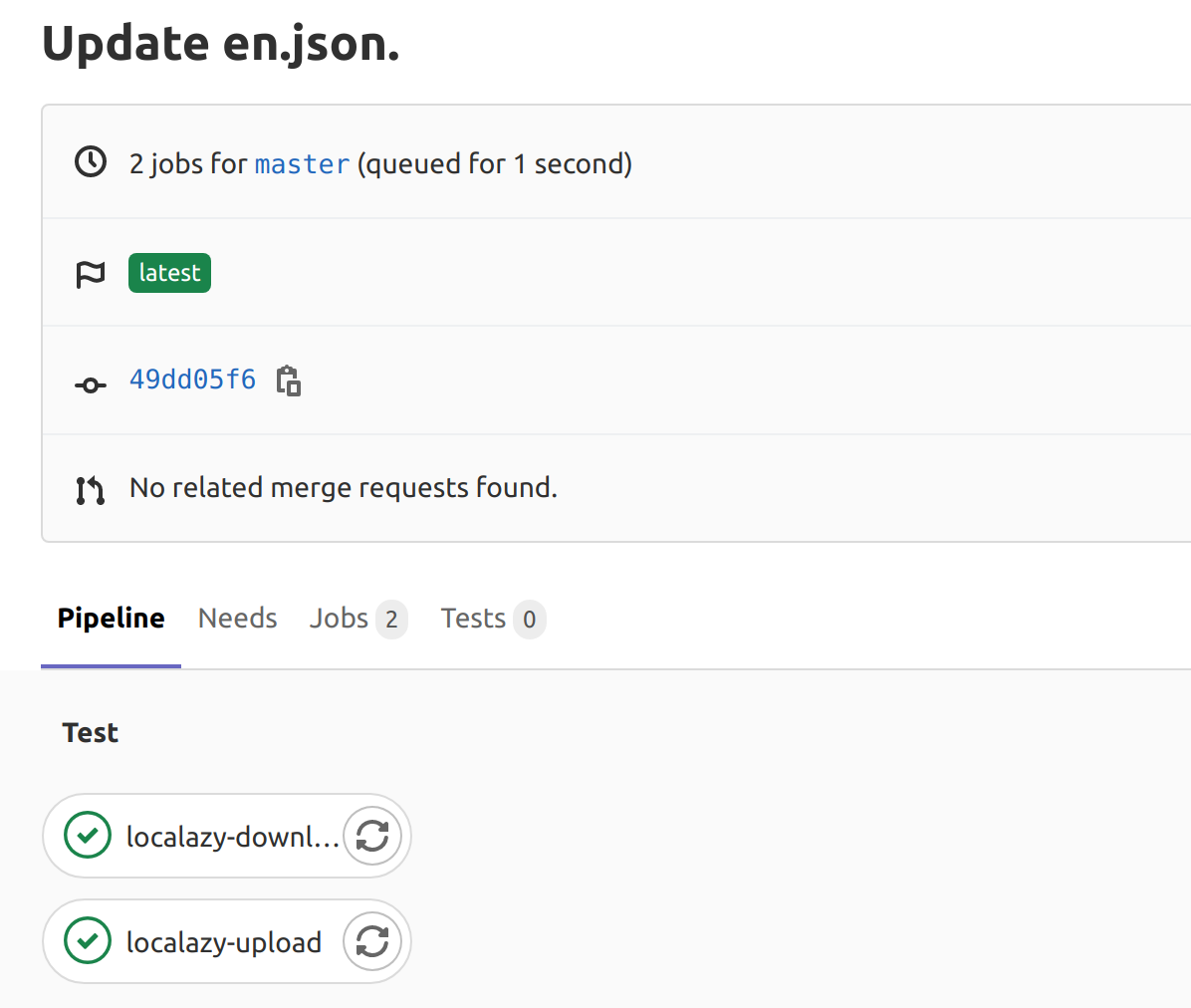
This file will be automatically picked up by GitLab and will trigger a single job called localazy-upload. As you can see, we use -w $LOCALAZY_WRITE_KEY and -r $LOCALAZY_READ_KEY arguments for authorization. With each push to the repository (regardless of the target branch), the upload operation to Localazy will be triggered.
Automated download
The download example here is a bit artificial as normally this would be only one of the jobs that would trigger during the build process of your app. However, it is a good starting point nonetheless.
The configuration is going to be very similar to the upload example. You can naturally put these two jobs into the same gitlab-ci.yml file if you will.
# This is a base template for Gitlab CI / CD
# that integrates Localazy download process into your workflow
# For available download options https://localazy.com/docs/cli/command-line-options

default:
  image:
    name: localazy/cli:latest

# There three ways how to authorize the operations (https://localazy.com/docs/cli/authorization)
# - authorization keys in the configuration file (localazy.json)
# - authorization keys in a separate file (localazy.keys.json)
# - authorization keys provided as command-line arguments
#
# If you wish to keep the writeKey and readKey as secrets, we recommend opting for the third option.
# - In Gitlab, define new environment variables (In project: Settings -> CI / CD - > Variables)
#   called LOCALAZY_WRITE_KEY and LOCALAZY_READ_KEY.
# - Type in your writeKey and readKey respectively

localazy-download:
    # For additional CLI options, see https://localazy.com/docs/cli/command-line-options
    script:
      - localazy download
        -w $LOCALAZY_WRITE_KEY
        -r $LOCALAZY_READ_KEY
As you can see, this job is identical except it triggers download operation instead of upload. Of course, this example effectively does nothing as files are only downloaded during the CI/CD pipeline, and if we don't use them to produce the release build, they are lost once the pipeline is finished and cleared. The exact build configuration strongly depends on your requirements.
Closing Words
This is only a starter template for GitLab CI/CD. It's quite likely that you do not wish to fire this automation with each push to each branch, but rather only with accepted pull requests to your staging or production branch. If that is the case, see the documentation about only/except. Nonetheless, this is a perfect basic configuration on which you can build further.
Comments
Join the discussionNo comments yet. Be the first to comment.


