Multilingual Figma prototyping with Localazy done quickly

Figma has become one of the most widely used design tools out there. And for a good reason. It is a powerful instrument that solves collaboration issues unprecedently well.
Figma is a web-first collaborative vector graphics editor that offers all the necessary tools for the designers and the other team members who have something to say about the design in each phase, from the initial brainstorming through testing multilingual variants to final polishing.
🤝 Benefits of Localazy & Figma
Here at Localazy, we use Figma extensively and absolutely love the product. It has helped us prepare better designs and style definitions, create interactive prototypes quickly through reusable components, and tackle potential usability challenges early.
We love the tool so much that it has become the first external tool we have built a localization plugin for. It was the most requested and now the most commonly used plugin within Localazy. Based on our users' experience, such a connection between the design and codebase through a translation provider platform has unlocked unreal possibilities they didn't know were even possible to achieve.
Among the most praised benefits of using the Figma plugin are:
- the definition of source keys and source values in Localazy (i.e., establishing a Single Source of Truth),
- developers save time by not having to copy and invent source keys,
- designers save time and keep existing designs up to date more easily by not having to apply content changes to the product manually.
- content writers have direct control of individual language variants within Localazy and don't need to ask designers/developers to make updates.
- ... and more.
🖌️ Importance of multilingual designs
If your product supports multiple languages, you need to test how it handles each language's different nuances and specifics. Some languages write from left to right while others write from right to left; some use commas as separators in numbers; some add currency symbols before a numeric value while others add them after it.
And some languages can surprise you with crazy long words (I'm looking at you, "Donaudampfschifffahrtsgesellschaftskapitän"!).
Such unique aspects of a specific language can cause a plethora of problems in your designs, such as:
- button label overflows the container,
- currency symbol wraps to the following line while the value stays on the previous one,
- short paragraph description creates a too wide space in RTL language,
- The call-to-action banner does not evoke the same emotion in other languages.
While some issues require some user testing to get right, you can easily prevent others (such as overflowing) in the early stages of the design phase.
🚀 Blazingly fast multilingual prototyping
However, what many designers and product managers out there don't realize is how efficiently one can use Localazy to test how Figma designs look and feel in other languages. In just a couple of clicks, we can upload the keys from Figma to Localazy, translate everything with machine translations and download everything back. Tweak the design if necessary and repeat it in another language. Just see for yourself. Looks great? Let's dive in!
⚙️ Initial configuration
Before we get to the blazingly fast part, we need to set up a couple of things:
- Sign up at Localazy.
- Create a Figma playground project (preferably keep it separated from the main Localazy project used for the production version).
- Activate the Autopilot plan in the Marketplace (don't worry, there is a 7-day trial).
- Install the Localazy plugin in Figma.
- Connect your Localazy account and project.
You won't need to repeat the first four steps later. Before you upload content from Figma, you may need to change the target project depending on if you wish to upload to the playground project or the main project.
Check out this article to learn more about the integration and the plugin in general.
📐 Prototyping
For this example, I will upload a single screen from our early versions of the new translate interface. The content is in English, and our project's source language is also set to English.
Within Localazy, we'll add German and Arabic languages and let Google's machine translation engine translate the content. After a brief moment, we'll be able to download the translations back to Figma. Feel free to follow along with your own Figma file.
Upload content into Localazy
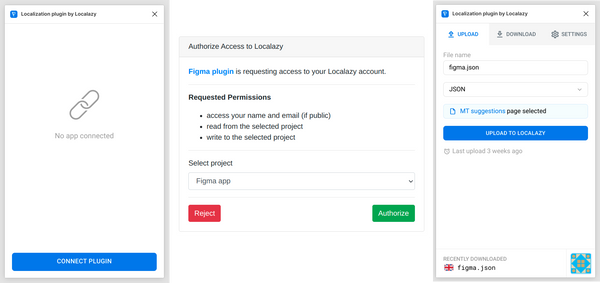
First of all, open a file of your choice in Figma, initialize the Localazy Figma plugin and connect to your target Localazy project.
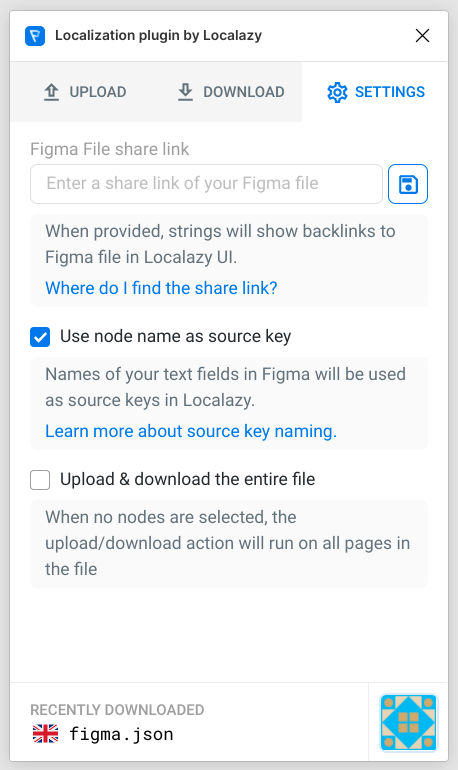
Then in the Plugin's settings, I'll check Use node name as source key to achieve more conveniently named source keys and uncheck Upload & download the entire file to only upload text nodes I have currently selected. Neither is necessary, but such configuration makes for a better experience, in my opinion.
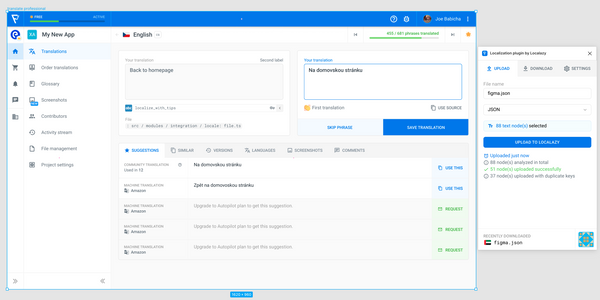
So, select the screen(s) you'd like to upload to the playground, fill in the file name under which the content will be stored in Localazy and select the target file format (JSON is a universal option). And upload.
Translate with MT
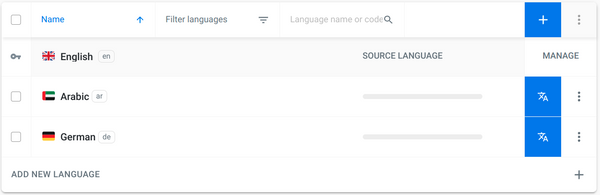
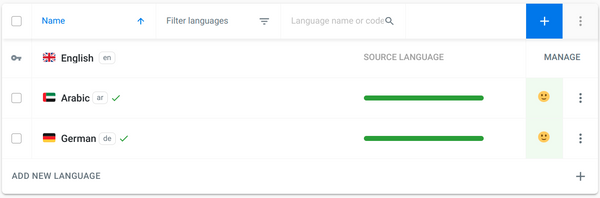
Navigate to your project in Localazy and add the languages you'd like to test. In my case, I've added German and Arabic.
Navigate to the File management section from the side menu and hover over the three dots on the right side of the filegroup you've uploaded from Figma (figma.json in my case). From the dropdown menu, select Pre-translate using MT.
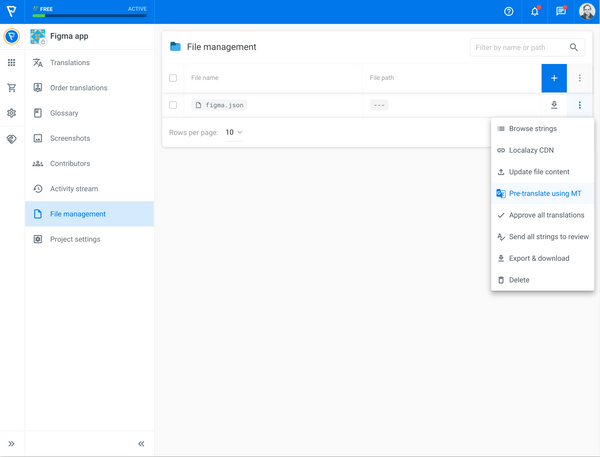
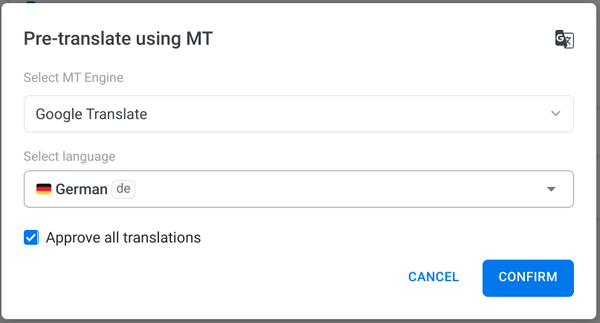
In the next step, feel free to choose your favorite MT engine. Each of them can handle specific scenarios, terms, and tonality differently, and one cannot say one is always better than the other.
I'll go with Google for demonstration purposes since their API can generally handle the translation request quite swiftly. Make sure to check the option Approve all translations so that you can use them immediately without having to review and accept them afterward. Repeat the step for all the languages you'd like to test out.
When you navigate back to the Translations section, you should see the languages fully translated (if not, try to refresh the page, the request might take a little time to process).
Preview in Figma
We're ready to preview the design in other languages now. Go back to your Figma file and switch to the Download tab in the Localazy Figma plugin. Select the source file and desired language, and select the screen/nodes you've uploaded to Localazy previously.
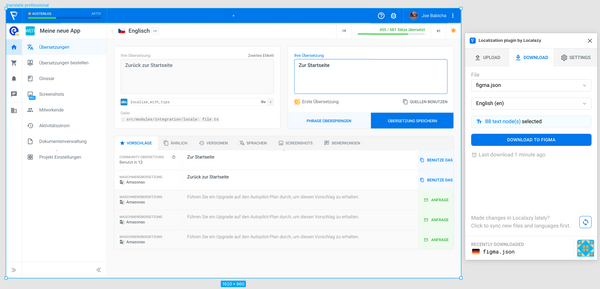
Voilà! We can see how the screen might look in German in just a few clicks. Admittedly, the machine translation most likely wouldn't make it to the production version, at least not without proofreading. But still, it can give you a good idea of whether the design could work or needs a big overhaul. In my case, the Use this button label translated as Benutze das almost overflows the button's container, and I know now that I should give it a little more space horizontally.
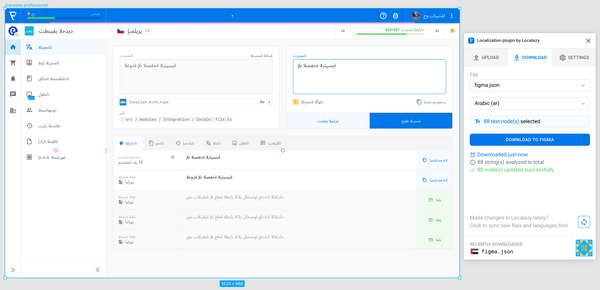
With Arabic, it gets more complicated as this is a right-to-left written language. The Figma plugin does not automatically change the text alignment, so you still need to tweak the design manually. But it's definitely much less work than having to translate the whole design as well.
✔️ Closing words
I hope this article gave you a good idea of how you can supercharge your multilingual prototyping with the Localazy Figma plugin. Don't hesitate to contact us via team@localazy.com or join our Discord channel if you have any questions.
Comments
Join the discussionNo comments yet. Be the first to comment.


