Translate Ad Banners on the fly with Localazy API

Banner Ad campaigns are a crucial part of marketing for many companies However, untranslated banners have only a limited effect on audiences whose native language is different. This article shows how you can use Localazy API to create and test how your banners look in various languages.
🦅 Translate banners on the fly
I'm going to expand on Rafał's article How to Localize Banner Ad Campaign, where he discusses the importance of banner localization and provides general advice. Furthermore, it contains step-by-step instructions on how you can use Localazy to build a JavaScript page that contains variously sized banners that use translated labels.
Rafał stores the translations in a JavaScript file which is later uploaded to Localazy, where he provides translations and then downloads it back, all powered by Localazy CLI. For most projects, this is an acceptable and recommended way of managing your translations, as using static files has its merits - they are released with your application. Hence, accessing the translations is instant; you can browse through them locally, and it's easy to build automated workflows that need to use the translations.
Nonetheless, there are scenarios where using static files in combination with Localazy API makes great sense. For instance, when you want to provide up-to-date translations without releasing a new version of your application, you can fetch everything through API and only fall back to static files in case of an error or as a fallback until the files are correctly fetched. In other scenarios, you can skip using the static files whatsoever and use API only. And that's precisely what we're going to do in this article.
🛠️ Preparation
I'm going to use Vue 3 as the basis for this project. It's not that important, really, as the main service responsible for communication with Localazy is written in TypeScript. As such, you could use any other JavaScript-based framework or vanilla HTML if you like.
Here is the link to the related repository.
Layout
This is all that we need.
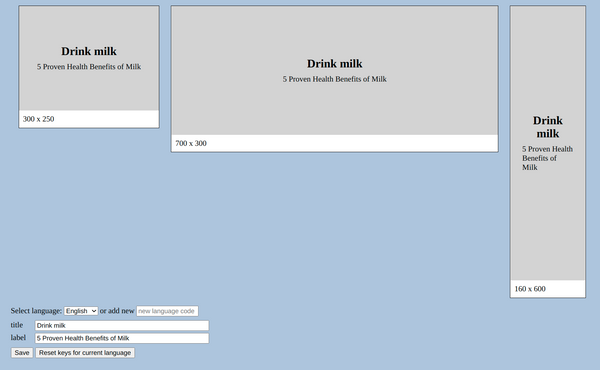
Three banners of various sizes and a couple of inputs and buttons. Let's go through them one by one.
Select language: Contains already created languages in LocalazyAdd new: If you provide a valid language code, the save button stores title and label as a new languagetitleandlabel: Textual content of banners, in English title is Drink milk and label is 5 Proven Health Benefits of MilkSave: Saves current values in Localazy. Either under currently selected language or as a new language when add new language code is providedReset keys for current language: Sets title and label of the selected language to empty values
Sign up and create a project
Before using API, we need to sign up and create a project in Localazy. We're going to use English as the primary language.
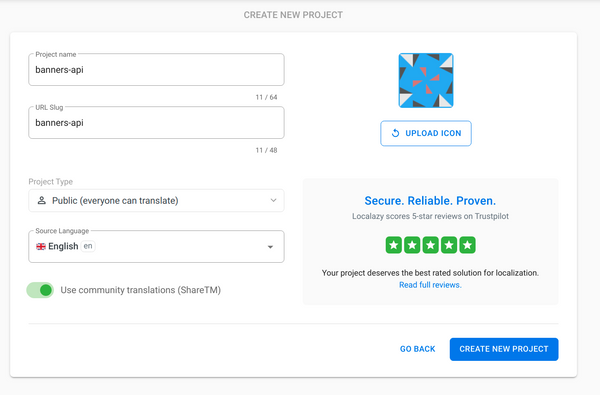
You're going to be prompted with integration options. However, we don't need to do anything else from the web interface as we will manage the content externally through API.
Read about Getting Started with Localazy in the documentation.
🕹️ Managing translation through API
Access token
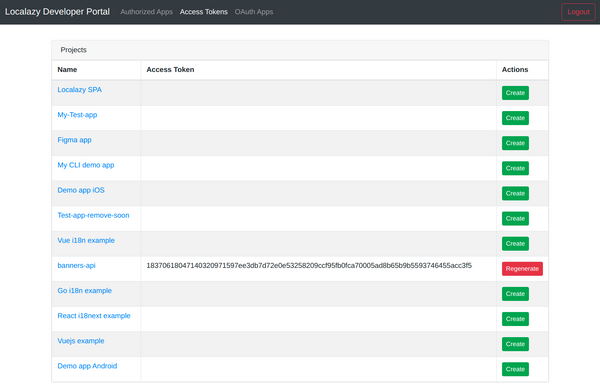
We're almost ready to start using the API. Before heading to IDE, the last thing left to do is generate a project token for API's authentication/authorization. Leave this page open; we'll need the access token shortly.
TypeScript library for API
Using APIs, in general, can be frustrating at first because they usually provide you with pretty basic and raw data. Consequently, the first step (right after reading the documentation) is often to test out various endpoints and what they return, and then start building your own services that process the data and return what you need.
However, for TypeScript/JavaScript projects, we've done some heavy-lifting for you upfront - @localazy/ts-api. It is a small NPM package that facilitates authorization, takes care of network requests, and provides type annotations for method arguments and their responses.
In order to install it, just run
npm install @localazy/ts-api
Creating API service
Even with the TypeScript library, we still need to create a couple of methods to retrieve the exact data we need from the target project. I only list the required methods and describe what they do; here is the file if you'd like to inspect them in detail.
constructor
- The following methods belong to a class. In its constructor, we initialize the Typescript library and pass in the projectToken we've generated earlier.
constructor() {
  this.api = LocalazyApi({
        projectToken: 'your-access-token',
  });
}
generateFile
- Creates a new file called banners in Localazy with values for title and label for the currently selected language or the provided new language code.
listProjectLanguages
- returns only languages attribute from the fetched project.
listKeysInFileForLanguage
- lists keys (translations) for the given file and language if both the file and language exist.
Putting it all together
We have all the tools and elements we need. It's time to register relevant methods to user-generated events and see them in action. As I mentioned earlier, the example is built with Vue 3. However, the following snippets are quite universal and understandable regardless of your background.
We bind our title and label values of the currently selected language to banners.
<banner
  :title="currentData.title"
  :label="currentData.label"
/>
Then we add an option to generate the translation file in Localazy. This will be visible when the Localazy's project is empty, i.e., not even the English entries have been uploaded yet.
<div v-if="languageKeys.status === 'file_does_not_exist'">
  File does not exist yet.
  <button @click="generateFile">
    Generate
  </button>
</div>

...

async function generateFile() {
  await LocalazyService.generateFile({
    languageCode: 'en',
    title: 'Drink milk',
    label: '5 Proven Health Benefits of Milk',
  });
}
The following represents a block with the currently selected language and the input for adding a new language. We bind the current language, and we monitor whether the input for the new language code is empty or not. When the user changes the currently selected language, we fetch the data for this language.
<language-options
  :languages="languages"
  v-model:language-code="currentData.languageCode"
  v-model:new-language-code="newLanguageCode"
  @change-language="onChangeLanguage"
/>

...

async function onChangeLanguage() {
  languageKeys.value = await LocalazyService.listKeysInFileForLanguage(currentData.value.languageCode);

  currentData.value.title = languageKeys.value.keys.find((key) => key.key.includes('title'))?.value || '';
  currentData.value.label = languageKeys.value.keys.find((key) => key.key.includes('label'))?.value || '';

}
The current values for title and label are passed to two editable inputs. Note that the keys for strings are represented by arrays. The keys can be nested under each other, and this is represented by arrays. For single-level keys, the array always contains exactly one entry. Nonetheless, we use data.key.join('.') to handle nested keys as well, just in case. The . separator is just one of the possible ways of representing (flattened) nested keys.
<translation-input
  v-for="data in languageKeys.keys"
  :key=" data.key.join('.')"
  v-model="currentData[data.key.join('.')]"
>
  `{{ data.key.join('.') }}`
</translation-input>
And lastly, the save and reset buttons. When saving, the target language is either the language code provided in the new language code input or the language code of the currently selected language. Reset is similar but sets title and label to empty strings;
<translation-buttons
  @save="onSave"
  @reset="resetKeysForCurrent"
/>

...

async function onSave() {
  const language = newLanguageCode.value || currentData.value.languageCode;

  await LocalazyService.generateFile({
    languageCode: language,
    title: currentData.value.title,
    label: currentData.value.label,
  });
}


async function resetKeysForCurrent() {
  await LocalazyService.generateFile({
    languageCode: currentData.value.languageCode,
    title: '',
    label: '',
  });
  languageKeys.value = await LocalazyService.listKeysInFileForLanguage(currentData.value.languageCode);
}
Let's see it in action!
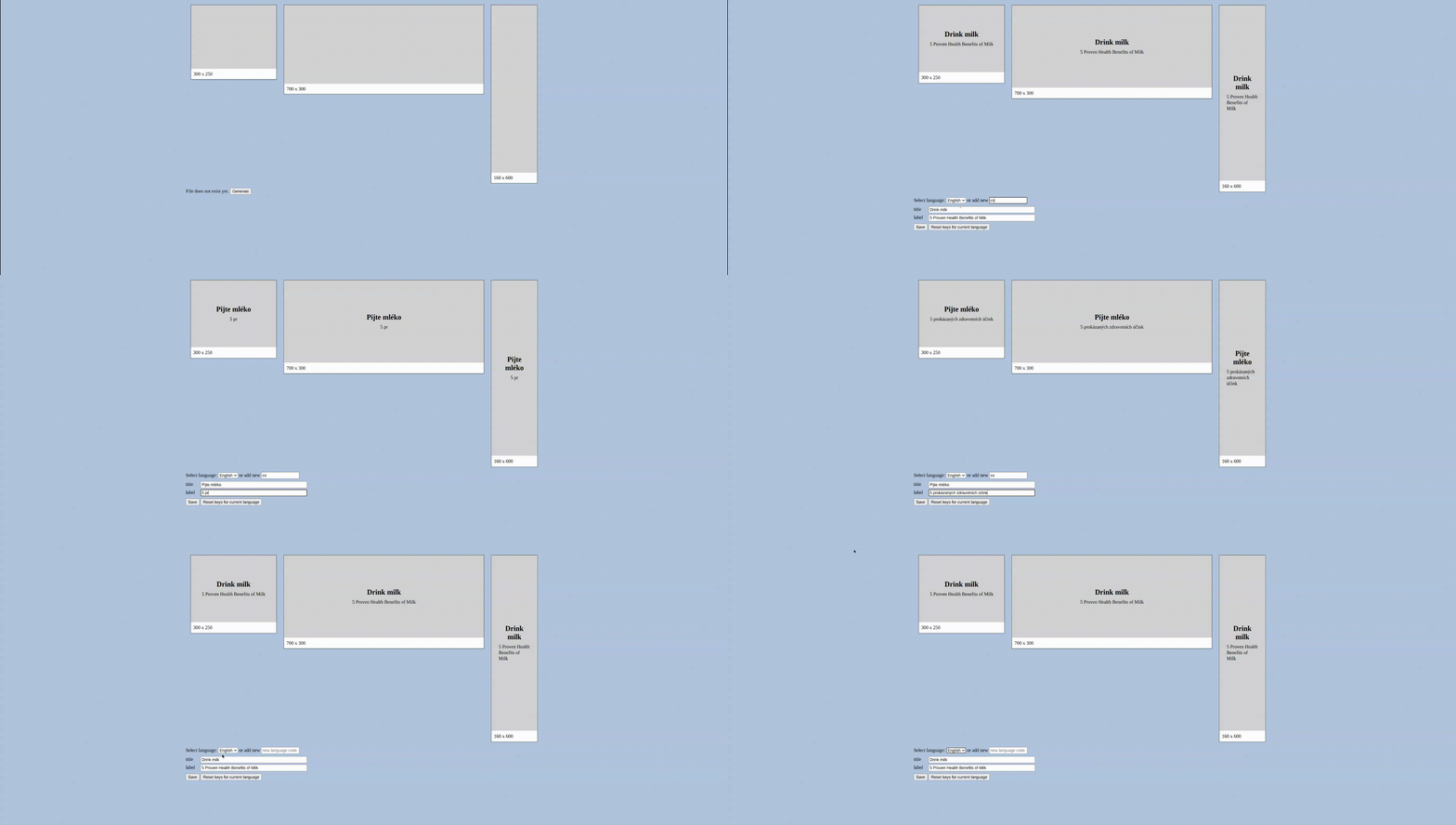
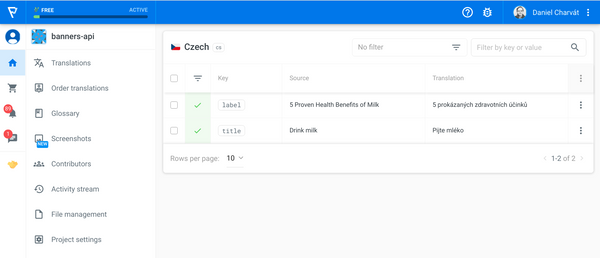
We can preview the content in our application, and once we are happy with the look and feel of the banner, we can store it in Localazy. And when we open the project in Localazy, we'll find the Czech translations inside without ever opening the project upfront.
✔️ Closing words
I hope this article helped you understand how to use Localazy's API to manage content externally. Refer to the repository if you'd like to inspect the code in detail. Don't hesitate to contact us via team@localazy.com or join our Discord channel if you have any questions. Happy coding!
Comments
Join the discussionNo comments yet. Be the first to comment.


